User manual and frequently asked questions CLICK&COOK FE506
What's clicking tonight?
Endless inspiration, versatile functions and perfect results—all just a few clicks away! Click & Cook by Tefal was designed to put delicious and exceptional cooking variety at your fingertips. This game-changing cooking food processor offers immediate access to 600 recipes for easy, crowd-pleasing meals, with step-by-step guidance on a crystal-clear 7-inch digital screen. Discover 32 functions and 10 automatic programs with 7 included accessories in one easy-to-use all-in-one appliance.
You must create an account and log in to your app to access this feature.
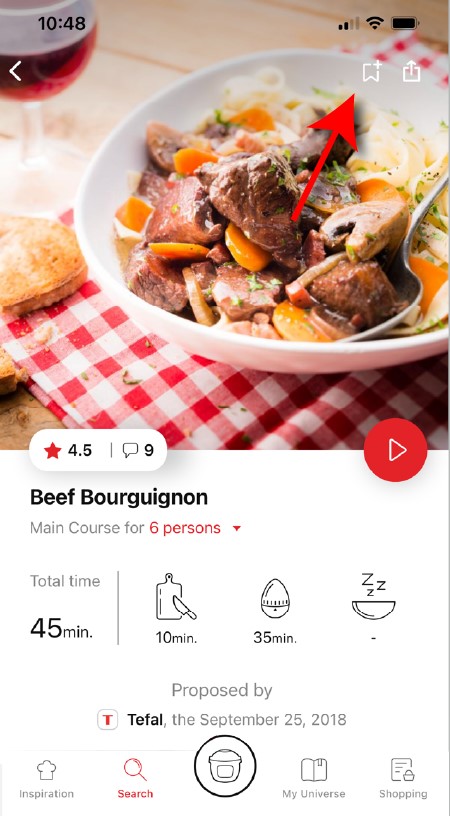
• Go to the recipe you wish to bookmark and select the bookmark logo in the top right corner. • A "My Notebooks" tab appears: select the "My Favorites" location. • The recipe has been added.
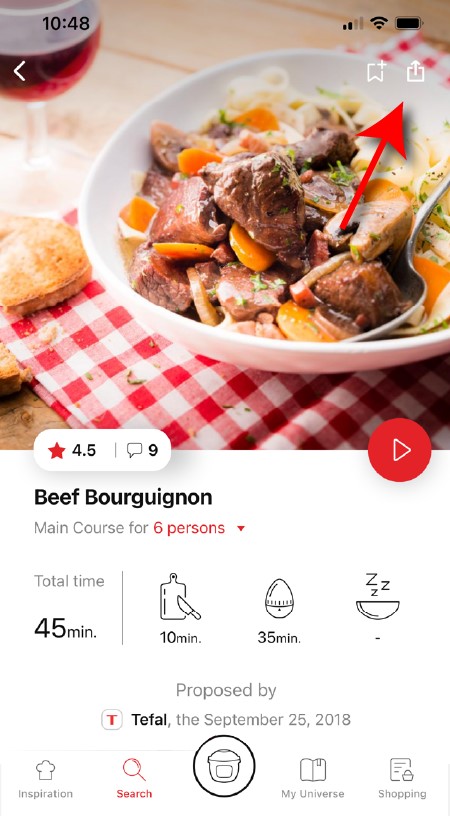
You need to create an account and sign in to the application in order to access this feature. Click the sharing logo to view the sharing options. You can then choose how you would like to share this recipe.
The application has rich content and requires a stable Wi-Fi connection to download correctly. If your application does not download correctly, delete it and try to download again when you have a more stable Wi-Fi connection. During initial installation, the download may take several minutes while the application saves all the photos on your Smartphone or tablet.
Your application uses notifications to alert you at the end of cooking times using a beep. If you want to turn off this signal, simply deactivate it in your tablet or Smartphone. You may also disable sounds in the parameter settings for notifications on your telephone or tablet.
Your application uses notifications to alert you when your cooking is finished but also to let you know when new content (information, recipe...) is available. If you wish, you can disable them from your smartphone settings.
You must create an account and log in to your app to access these features.
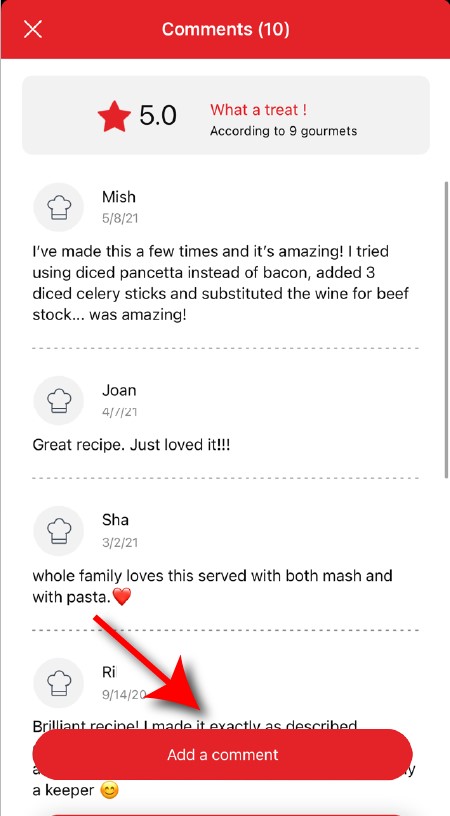
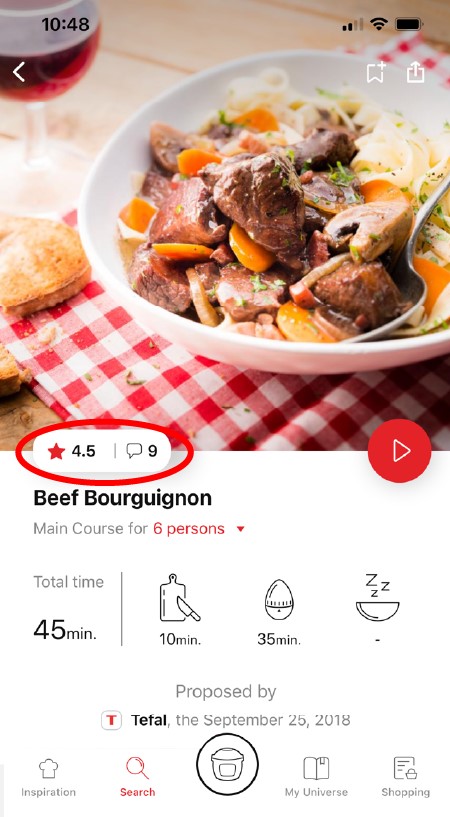
Once logged into your account, you will be able to rate the recipe and add a comment by following the instructions that appear on the screen after clicking on the notes/comments space.
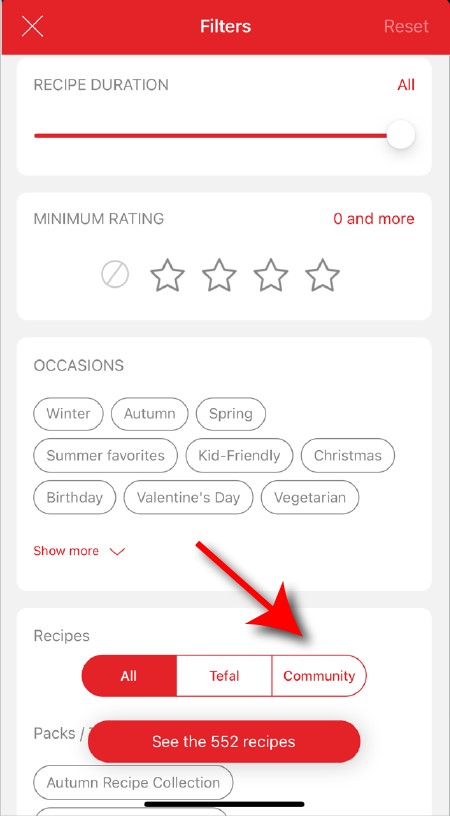
When using the search function, select "Filter recipes". In the "Recipes" section, select "Community" only. You will then be able to see the recipes from the community.
Once you have completed your search, specific filters make it easier for you to find the recipes that meet your needs.
The customizable filter: • Click on "Filter" in order to sort the recipes according to the type of dish (starter, main course, dessert), the time it takes to make the recipe, the minimum rating, their themes (or packs)... • You can also choose to select only the recipes of the brand or the recipes proposed by the community.
Sorting recipes: Once you have made a search, you can sort your recipes by popularity, rating, age or alphabetical order.
You must create an account and log in to your app to access these features.
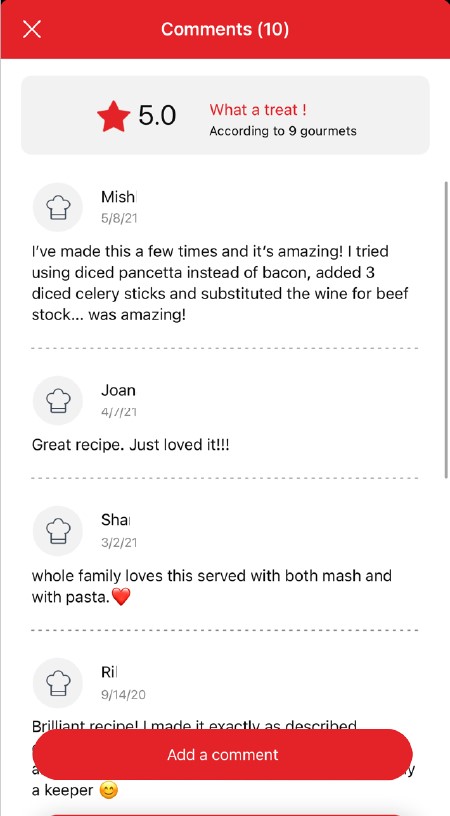
Once logged in, you will be able to read the comments and see the notes that community members have given to the recipe by clicking on the notes/comments area.
You must create an account and log in to your app to access this feature.
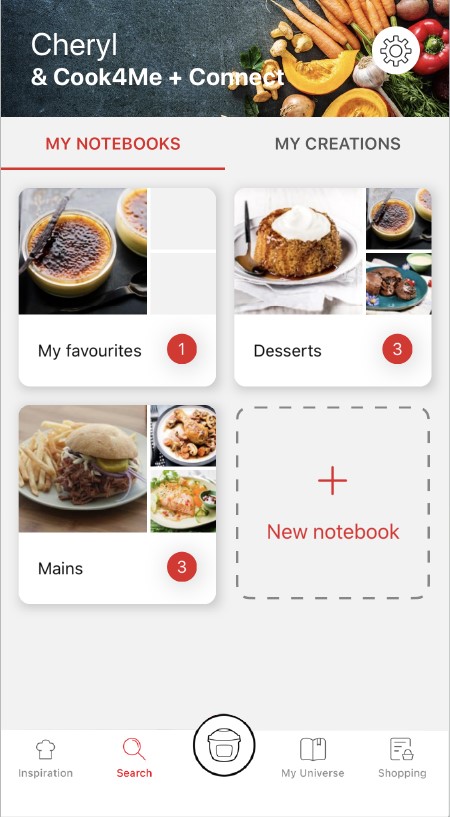
• Choose the "My Universe" tab in the navigation bar. • There, you will find your recipe booklets and can create new ones by clicking on "New booklet".
Choose the "My Universe" tab in the navigation bar, then select the booklet you wish to modify or delete. Click on the pencil at the top right of the screen, then select the action you are looking for ("Delete booklet", "Rename booklet" or "Delete recipes").
It is important to select your product in the app in order to find the right recipes for that product. This way, the app will suggest hundreds of ideal recipes. It will also let you add your accessories and access the associated recipes.
• In "My universe", select "My profile". • Click on the image of the registered product. • Click on "Remove the product". The app will then ask you to select a product.
You can use the steamer basket to cook the food you want to keep in pieces. Place the ultrablade knife in the bowl, add the ingredients you want to blend according to the recipe (carrots, potatoes, onion, ...) but make sure the vegetables at the bottom of the bowl do not obstruct fitting the steamer basket. Add the ingredients you wish to keep in pieces (bacon, chorizo, peas...) in the steamer basket. Add liquid to the bowl (water, stock,...) but without exceeding the maximum level.
You can use a baking paper which covers the bottom and the inner walls of the basket, to make recipes such as omelets, frittata, fish, white meats... with the steam program.
You can use a baking paper and cover the bottom and the inner walls of the basket to make recipes such as omelettes but also frittata, fish, white meat... Use the "Steam cooking" program to cook this type of preparation.
We know that the respect of a certain global temperature is important in the realization of this type of recipe. For best results, we recommend using warm water and taking out your fresh ingredients in advance so that they are not too cold (butter, eggs, milk...).
Whether in automatic program or manual mode, you can stop the device at any time by pressing the "Stop" button. The programme is then in pause mode. You can restart it by pressing "Start" again. If you have made a mistake in programming and/or want to cancel, press and hold the "Stop" button for 2 seconds.
Whether in automatic program or manual mode, you can stop the device at any time by pressing the "Stop" button. The programme is then in pause mode. You can restart it by pressing "Start" again. If you have made a mistake in programming and/or want to cancel, press and hold the "Stop" button for 2 seconds.
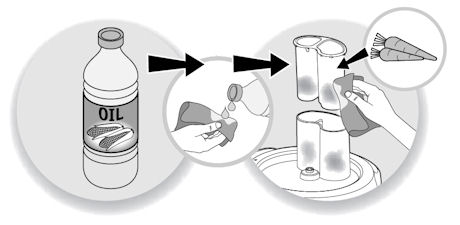
In order to reduce discolouration, rub the stained areas with a cloth or a paper towel dipped in cooking oil, then clean as usual. It is essential to clean immediately after use to avoid any staining.
To remove white traces or "rainbow" coloration from the bottom of the bowl, follow these 3 steps: • Pour 10 cl of white vinegar into the bowl with the spindle and leave it for 1 hour. • Empty the bowl and wipe the inside with a sponge. • Rinse the bowl several times with clean water.
It is advisable to clean the tools immediately after staining appears, you can use lemon juice. You can also leave the accessory in sunlight for a few hours.
1. Let it soak for 1 hour (water + dishwashing liquid). 2. Scrape off the deposit using a wooden spatula or spoon. 3. After emptying the bowl, scrub the bottom using the abrasive side of a sponge. 4. If there are still traces of the stain, scour with steel wool.
Instead of dishwashing liquid, you can also use lemon juice, white vinegar or a dishwashing tablet dissolved in water (leave to work as long as needed).
You can cool the bowl before making the recipe by crushing 10 ice cubes using "pulse" with the kneading/grinding blade, then empty the bowl, wipe it dry and immediately make the sorbet recipe.
The recipes were tested with ingredients at room temperature (20°C), It is possible that some recipes require 2 to 3 minutes of additional cooking if the ingredients (milk, eggs…) are from the refrigerator.
Check that you do not exceed the maximum quantities of ingredients specified in the instructions for use, and that you use the speed and accessory appropriate to your recipe. If after these checks the problem persists, take your product to an authorized repairer.
• Make sure that the power cable is properly plugged into the mains supply. • Check that the device is not in standby mode by pressing the "OK" button. • Check that the On/Off switch on the base at the back is in the "I" position.
If the problem persists, take your device to an authorized repair centre.

 Cookies are used for audience measurement and personalization to help us improve your use of the product.