User manual and frequently asked questions Cooking Connect
Pop Up Your Talent
The interactive kitchen scale connected to a step-by-step cooking app.
Make cooking and baking both a pleasure and success with Cooking Connect, the interactive kitchen scale connected to an intuitive recipe app. Discover a unique step-by-step cooking approach directly from your tablet, allowing you to relax about measurements and obtain better results - all while improving your cooking skills!
Don't worry. You won't have to start over from the beginning. Press and hold the button for a few seconds the Bluetooth® symbol of the scale will blink until the LCD screen turns blue to confirm the connection.
1) Make sure you have selected the Cooking Connect scale as the one you are using in your personal account. If "Other Scales" is selected, the connection logo will not appear in the application and the connection will not happen during the step-by-step process.
2) Restart the pairing process between the scale and the application: • Activate Bluetooth® in the settings of your smartphone or tablet. • For Apple device users, from iOS 13, also make sure that you have enabled the application to use Bluetooth, see your phone settings. • Launch the Cooking Connect application and select a recipe from the recipes mosaic. • Launch the step-by-step instructions. • Turn on the scale, the connection will happen automatically.
Once connected, the LCD screen and the following two buttons on the scale will light up blue to indicate that there is a connection between your smartphone or tablet and your Cooking Connect scale.
At the top right of your application screen, you will find the following symbol: <
• Make sure you've started the step-by-step. Only the step-by-step mode enables the connection between the scale and your smartphone/tablet. • Make sure you have activated the Bluetooth® function on your smartphone/tablet. • For users of Apple devices, from iOS 13, also make sure that you have enabled the application to use Bluetooth, see your phone settings. • Restart the connection to the scale by pressing the following key for a few seconds The Bluetooth® symbol on the scale will blink until the LCD screen turns blue to confirm the connection.
• Make sure you have selected the Cooking Connect scale as the one you are using in your personal account. If "Other scales" is selected, the connection logo will not appear in the application and the connection will not happen in a step-by-step process.
Bluetooth SMART® 4.0products, like the "Cooking Connect" scale, do not appear in the list of Bluetooth® devicesfor the smartphone or tablet. They require download of an app (in this case, the app"Cooking Connect"). Syncing can only take place with this app!
An Internet connection is required only to download and update the application, and sign in to my account. An Internet connection is not needed to use the connected feature of your product. There is no need to move your product closer to the access point (Internet router).
If you wish, you can pair multiple devices as long as you only use one account on your app. To do so, pair each device independently. However, only one device can be connected at a time.
Place your appliance on a flat, stable surface. For the best connection between your appliance and smartphone/tablet, we recommend performing all operations requiring a connection at a sensible distance. If the connection is lost (connection symbol crossed out), move your device closer until the connection is re-established. If the connection indicator is lit (app or product), your devices are connected.
If the connection between your appliance and smartphone/tablet is lost during a recipe, the two devices will be automatically synchronized as soon as the connection is re-established. You will be able to resume your recipe at the step you were on when the connection was lost.
In order to validate a step, it is imperative that you confirm the previous steps. The most likely reason why you cannot confirm a step is that you passed from one step to the next via the "timeline" at the bottom of the screen. This method of scrolling in the recipe does not confirm the steps, but offers the possibility to navigate the recipe and view the next or previous steps without confirming or cancelling the current step. You must return to the previous step to confirm it.
The application has rich content and requires a stable Wi-Fi connection to download correctly. If your application does not download correctly, delete it and try to download again when you have a more stable Wi-Fi connection. During initial installation, the download may take several minutes while the application saves all the photos on your Smartphone or tablet.
Your application uses notifications to alert you at the end of cooking times using a beep. If you want to turn off this signal, simply deactivate it in your tablet or Smartphone. You may also disable sounds in the parameter settings for notifications on your telephone or tablet.
Your application uses notifications to alert you when your cooking is finished but also to let you know when new content (information, recipe...) is available. If you wish, you can disable them from your smartphone settings.
Your appliance can be used without the app. However, only the app will enable you to benefit from the many advantages available when your product is connected.
The app is no longer compatible on Android versions 4.4.4 or lower, because of reinforced data security.
As far as possible, we recommend that you update your device to a higher Android version or use another compatible device.
Updates will not only allow you to enjoy a richer experience with new features and compatibility with the latest technology, but will also protect you against possible security vulnerabilities that have been fixed in the latest versions.
You must create an account and log in to your app to access these features.
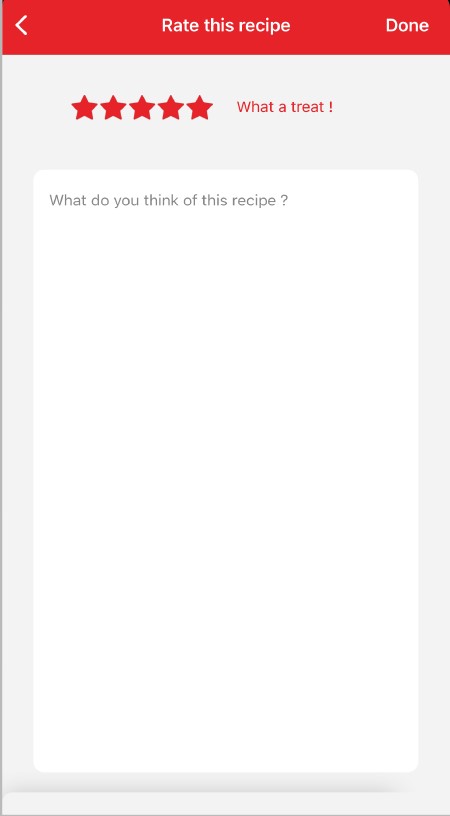
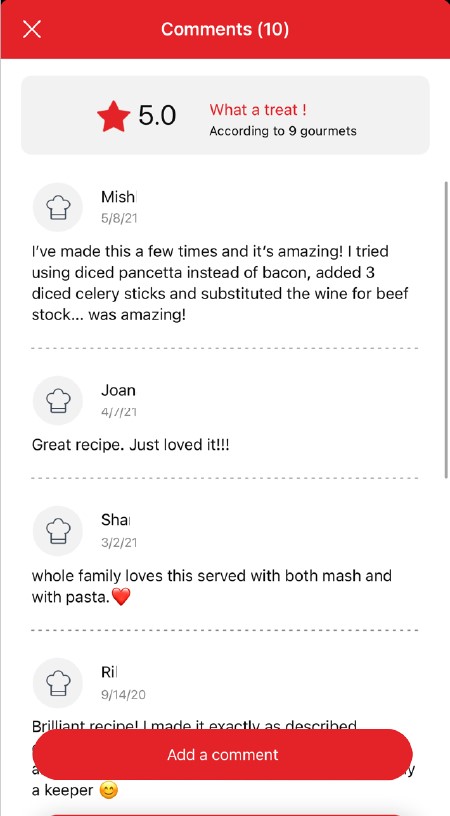
Once logged into your account, you will be able to rate the recipe and add a comment by following the instructions that appear on the screen after clicking on the notes/comments space.
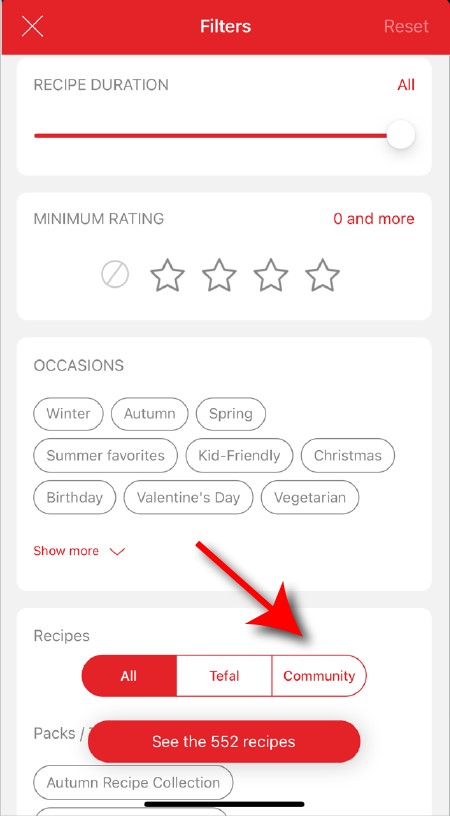
When using the search function, select "Filter recipes". In the "Recipes" section, select "Community" only. You will then be able to see the recipes from the community.
Once you have completed your search, specific filters make it easier for you to find the recipes that meet your needs.
The customizable filter: • Click on "Filter" in order to sort the recipes according to the type of dish (starter, main course, dessert), the time it takes to make the recipe, the minimum rating, their themes (or packs)... • You can also choose to select only the recipes of the brand or the recipes proposed by the community.
Sorting recipes: Once you have made a search, you can sort your recipes by popularity, rating, age or alphabetical order.
You must create an account and log in to your app to access these features.
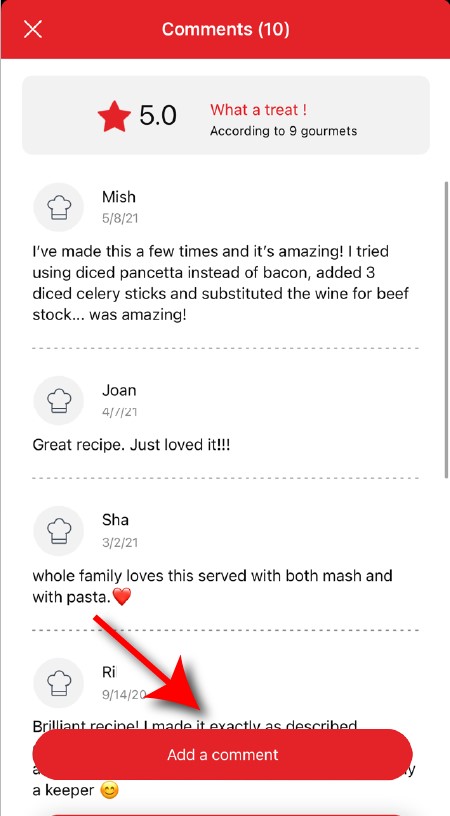
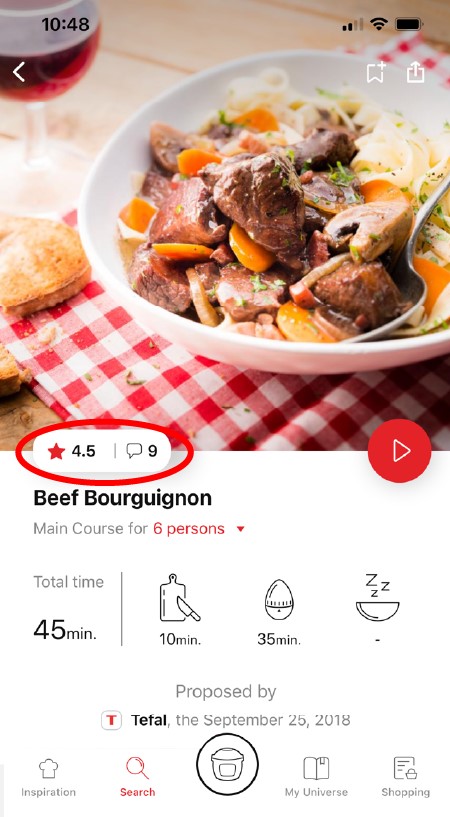
Once logged in, you will be able to read the comments and see the notes that community members have given to the recipe by clicking on the notes/comments area.
You must create an account and log in to your app to access this feature.
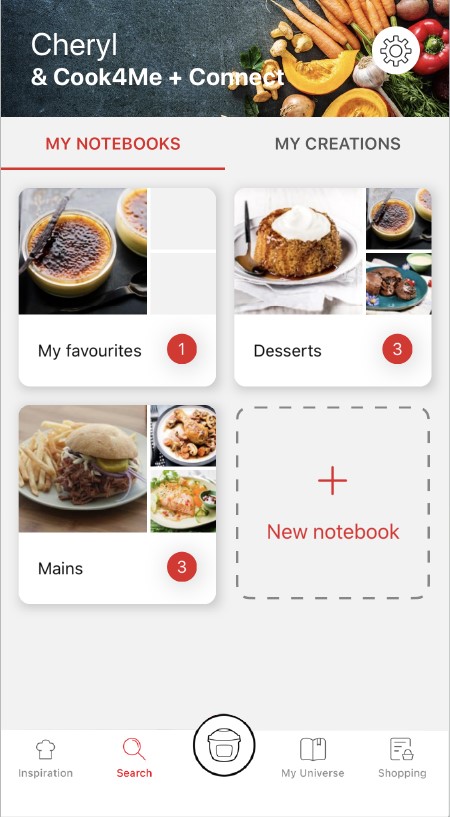
• Choose the "My Universe" tab in the navigation bar. • There, you will find your recipe booklets and can create new ones by clicking on "New booklet".
Choose the "My Universe" tab in the navigation bar, then select the booklet you wish to modify or delete. Click on the pencil at the top right of the screen, then select the action you are looking for ("Delete booklet", "Rename booklet" or "Delete recipes").
It is important to select your product in the app in order to find the right recipes for that product. This way, the app will suggest hundreds of ideal recipes. It will also let you add your accessories and access the associated recipes.
• In "My universe", select "My profile". • Click on the image of the registered product. • Click on "Remove the product". The app will then ask you to select a product.
To set the tare, first of all: • switch on the scale • put your container on the tray (the container may overlap the tray) • press 'ON/OFF' and wait for the display to show zero. The weight of the container is automatically deducted.
Wipe the scale with a slightly damp cloth and dry it completely. Do not immerse the appliance in water. Do not use abrasive products. For the bowl and the lid provided with certain models: • Do not heat or use in the microwave, • Washing by hand is recommended to guarantee prolonged use.
Make sure there is no device operating nearby that emits electromagnetic waves such as, for example, a microwave. In fact, these waves can interfere with the weight sensors. Make sure that your scale is not in contact with another object. Note that the scale is so precise that it can be disrupted by friction from the side.
Appliances such as microwave ovens or mobile phones used near the scale may cause disruption to the weight display. Do not leave the scale near a heat source. Do not put hot containers on the scale.
Yes, because the scale has a touch On/Off buttonthat enables its operation without the app. However, only the app "Cooking Connect" will allow you to benefit from the scale's many advantages (interactive weighing, automatic tare and conversion, access to recipes, etc.).
The scale operates with four LR03 AAA batteries. The batteries are to be inserted into the battery housing designated for this purpose that is at the rear of the scale.
Cooking time is not recalculated if the number of guests has been changed with respect to the original recipe. It is up to the user to adapt the cooking time.
delivery.information.popup.title
delivery.information.popup.text1
shipping.logistician.extlog
shipping.logistician.saplog
delivery.information.popup.text2
recommended Price
This price is the price recommended by Tefal to distributors




 Cookies are used for audience measurement and personalization to help us improve your use of the product.