User manual and frequently asked questions OptiGrill 2in1 XL
The only 2in1 XL intelligent grill and barbecue
Discover an intelligent grill and BBQ in one convenient appliance with XL capacity that's ideal for all your daily meals. Its patented technology and cooking level indicator measures the thickness of your food down to the millimeter, accounts for the number of pieces, and automatically adjusts the cooking time for perfect results. Along with 12 automatic cooking programs and angled plates that help drain away fat, OptiGrill 2in1 XL puts a variety of delicious and healthy meals within reach
You must create an account and log in to your app to access this feature.
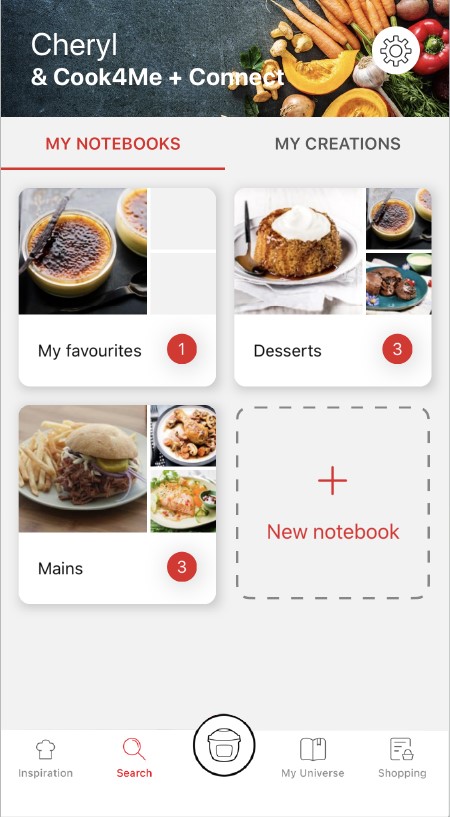
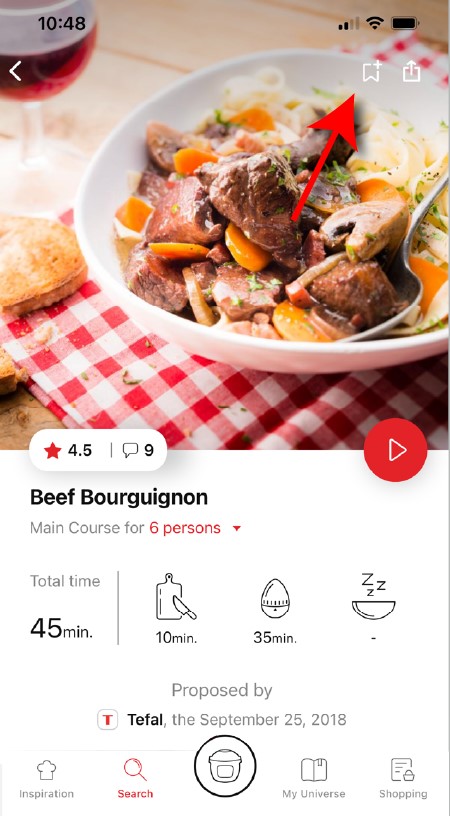
• Go to the recipe you wish to bookmark and select the bookmark logo in the top right corner. • A "My Notebooks" tab appears: select the "My Favorites" location. • The recipe has been added.
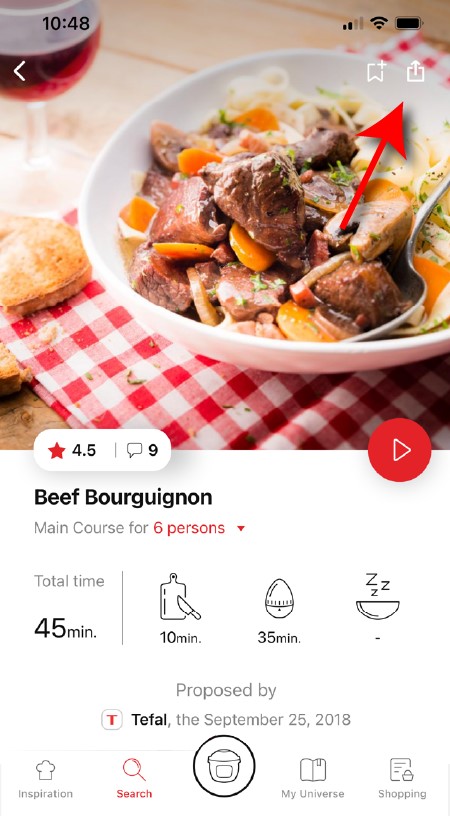
You need to create an account and sign in to the application in order to access this feature. Click the sharing logo to view the sharing options. You can then choose how you would like to share this recipe.
The application has rich content and requires a stable Wi-Fi connection to download correctly. If your application does not download correctly, delete it and try to download again when you have a more stable Wi-Fi connection. During initial installation, the download may take several minutes while the application saves all the photos on your Smartphone or tablet.
Your application uses notifications to alert you at the end of cooking times using a beep. If you want to turn off this signal, simply deactivate it in your tablet or Smartphone. You may also disable sounds in the parameter settings for notifications on your telephone or tablet.
Your application uses notifications to alert you when your cooking is finished but also to let you know when new content (information, recipe...) is available. If you wish, you can disable them from your smartphone settings.
You must create an account and log in to your app to access these features.
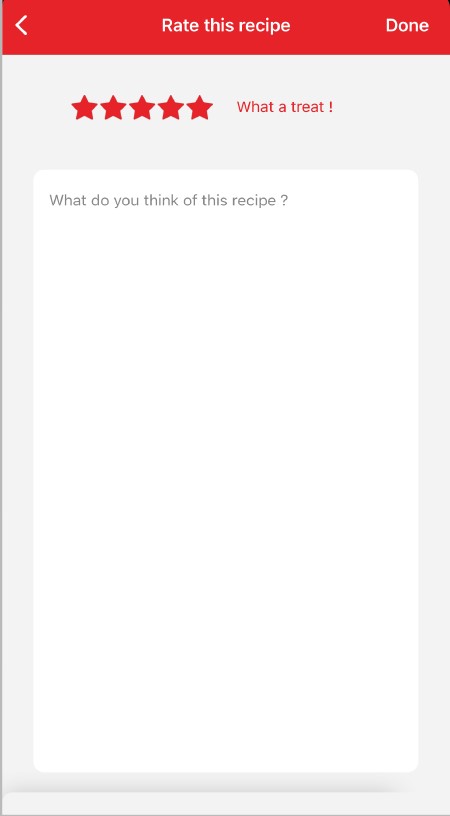
Once logged into your account, you will be able to rate the recipe and add a comment by following the instructions that appear on the screen after clicking on the notes/comments space.
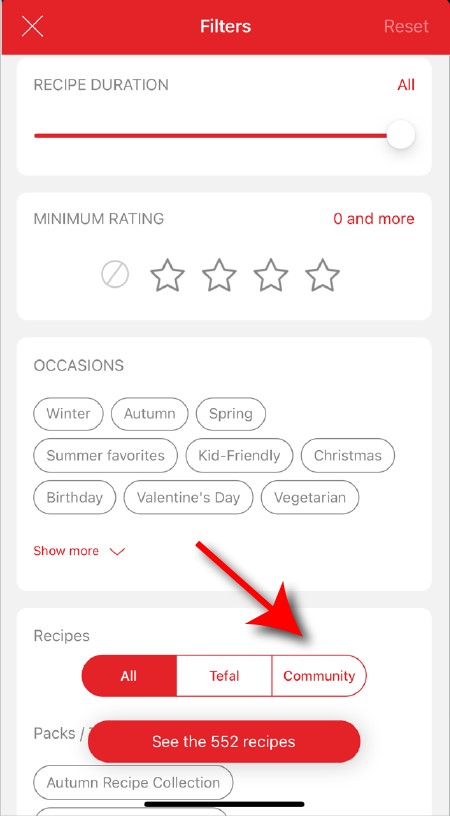
When using the search function, select "Filter recipes". In the "Recipes" section, select "Community" only. You will then be able to see the recipes from the community.
Once you have completed your search, specific filters make it easier for you to find the recipes that meet your needs.
The customizable filter: • Click on "Filter" in order to sort the recipes according to the type of dish (starter, main course, dessert), the time it takes to make the recipe, the minimum rating, their themes (or packs)... • You can also choose to select only the recipes of the brand or the recipes proposed by the community.
Sorting recipes: Once you have made a search, you can sort your recipes by popularity, rating, age or alphabetical order.
You must create an account and log in to your app to access these features.
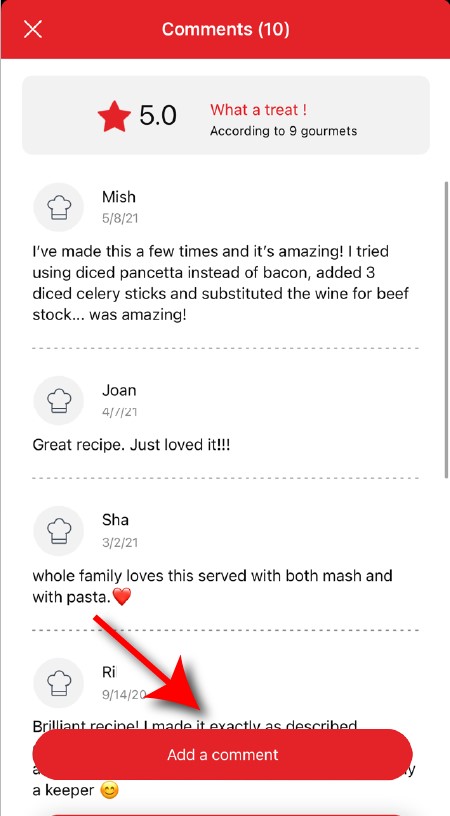
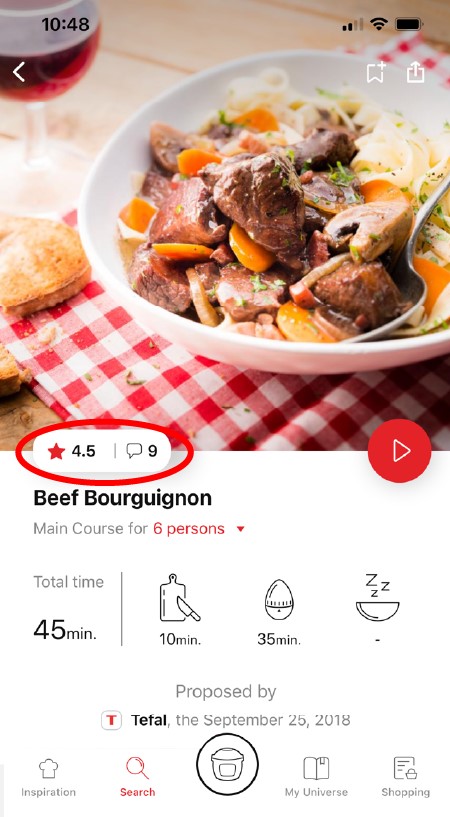
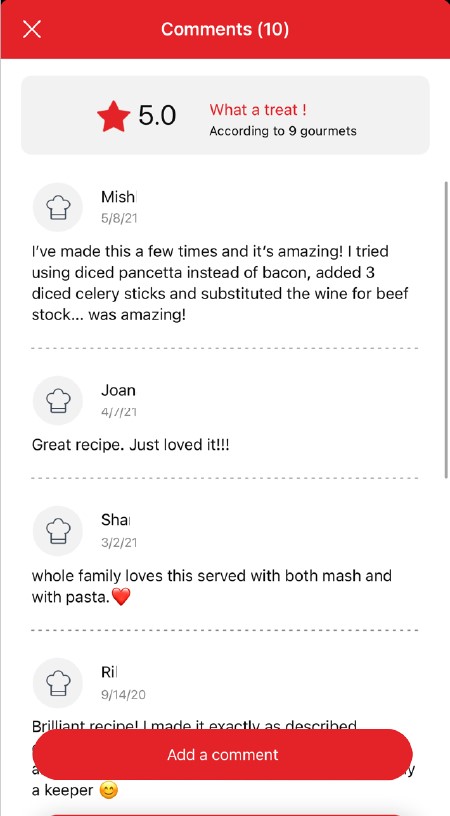
Once logged in, you will be able to read the comments and see the notes that community members have given to the recipe by clicking on the notes/comments area.
You must create an account and log in to your app to access this feature.
• Choose the "My Universe" tab in the navigation bar. • There, you will find your recipe booklets and can create new ones by clicking on "New booklet".
Choose the "My Universe" tab in the navigation bar, then select the booklet you wish to modify or delete. Click on the pencil at the top right of the screen, then select the action you are looking for ("Delete booklet", "Rename booklet" or "Delete recipes").
It is important to select your product in the app in order to find the right recipes for that product. This way, the app will suggest hundreds of ideal recipes. It will also let you add your accessories and access the associated recipes.
• In "My universe", select "My profile". • Click on the image of the registered product. • Click on "Remove the product". The app will then ask you to select a product.
No. Once the first batch has finished open the grill fully and remove the food. Close the grill and press OK. You do not have to switch off the grill first. When the lights flash again, choose the mode that you want. The preheating phase should be a lot quicker than the first time as the plates will already be hot. When the Optigrill beeps to say it is ready, open the grill again and put the second batch of food on to the plates and continue as normal.
Before cleaning your grill, wait around 45 minutes while the device cools. To remove heavy food residue on the grill plates or on the side, we recommend you use a wooden or plastic spatula. To clean the grill and grill components, use a cloth soaked in hot water. Do not immerse the grill in water. Do not use abbrasive cleaning products or products containing alcohol or fuel since these may damage the device.
• The grill plates have not been properly placed on the plate hooks and therefore, the sensors cannot correctly detect the food. To rectify this problem, turn off the appliance and allow it to cool down. Then install the cooking plate correctly. • You started cooking before preheating had finished. To rectify this: turn off the appliance, remove the food, close the appliance. Turn the appliance back on, select then confirm a programme and wait until preheating has finished. • You started cooking food between the plates without preheating. To rectify this: turn off the appliance, remove the food, close the appliance. Turn the appliance back on, select then confirm a programme and wait until preheating has finished. • If the problem persists despite adhering to the advice above: the appliance may need to be repaired.
If your food is under 4 mm thick, it is too thin (like bacon slices), it may not be detected. This is not a problem simply press the OK key for confirmation for cooking to start.
This may be due to improper cleaning of the cooking plates. We recommend that you pre-wash your cooking plates in the following manner before putting them in the dishwasher to remove any food residue: - Soak the plates in hot water and degreasing dish soap for about 30 minutes, - Scrub both sides of the plate with a sponge or a dish brush, hot water and degreasing dish soap, - Rinse, - Put in the dishwasher.
The device has remained open for too long during cooking or the device has been idle for too long after the preheating or warming has been completed. Unplug the device and wait a few minutes. Then plug your device in again and turn it on.
The appliance has been switched on or an automatic cooking program has been started without preheating. The manual mode is automatically activated. 2 possible options: • Choose the temperature setting by pressing the "M" button and then press "OK". Allow to cook, but you must monitor the cooking (manual mode). • Stop the appliance, remove the food, close the appliance properly, re-program the appliance and wait until end of preheating.
• The food should not be thicker than 4 cm. • The grill was not opened completely when placing the food inside. Open the grill completely and close it again. • If the food is too thin, it may not be detected and the "OK" button will flash. Confirm the cooking start by pressing the "OK" button.

 Cookies are used for audience measurement and personalization to help us improve your use of the product.